4
Four markers
Place two vertical and two horizontal lines at the impression edge. Fine-adjust one source pixel at a time.

Multitek BMS Essentials
Live camera or file, calibrated diameters, manual and automatic circle tools, HBW calculation, tolerances, trends and image-backed reporting in one operator workspace.
One measurement workspace
BMS Essentials keeps the camera view, measurement tools, current hardness, results grid, trend chart and machine controls together. Operators do not need to transfer diameters into a separate calculator and then reconstruct the report later.
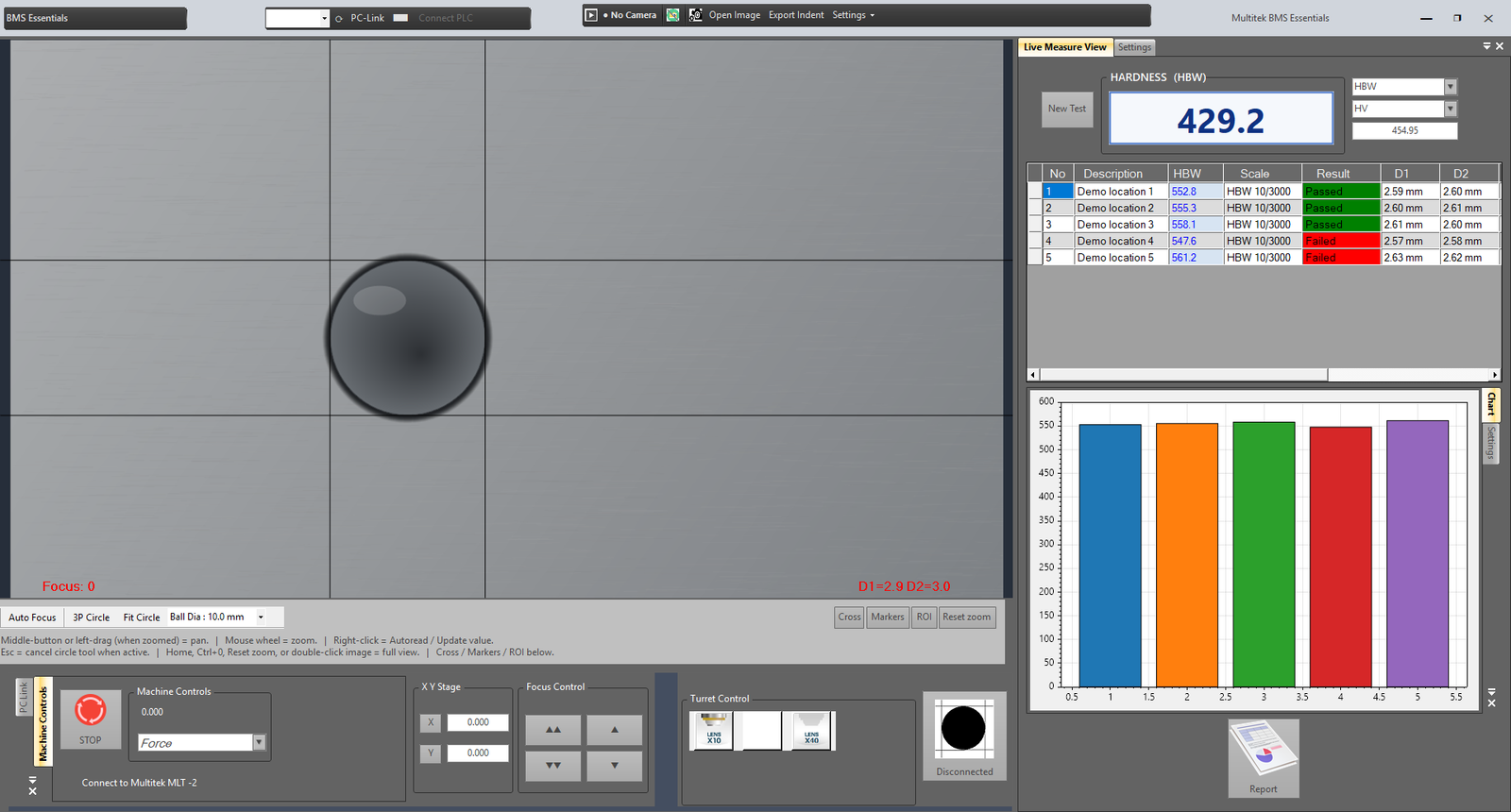
Demonstration workspace with synthetic indent and sample results. Production accuracy depends on the commissioned camera, optics, force and calibration.
Measurement tools
A practical system needs more than one way to handle a difficult surface or an unusual impression.
Place two vertical and two horizontal lines at the impression edge. Fine-adjust one source pixel at a time.
Select three edge points and let the geometric circle define the diameter and centre.
Pick multiple boundary points so a fitted circle averages the chosen edge evidence.
Restrict automatic indentation detection to a region of interest and review the proposed boundary.
Machine-integrated systems can drive a staged focus sweep while recording sharpness and camera diagnostics.
Centre the feature, zoom around the pointer and pan without changing the source-image measurement.
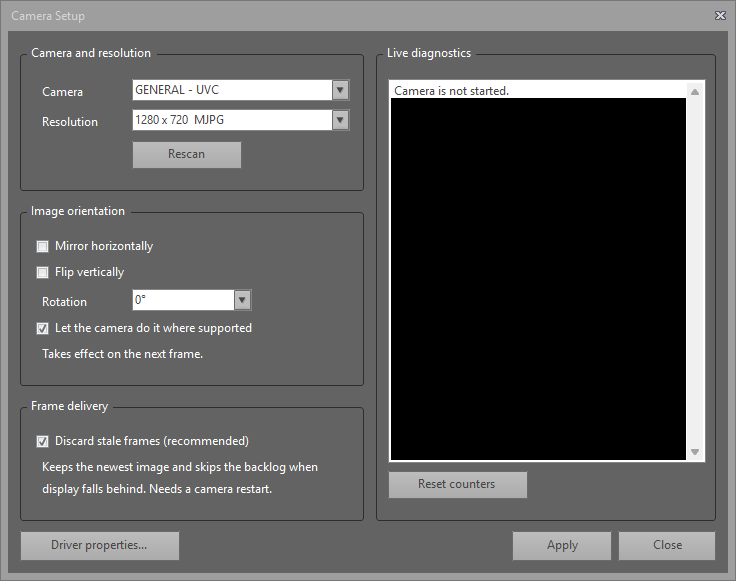
Camera selection, negotiated mode, orientation, latest-frame delivery and live diagnostics.
Multitek.LiveCam V7 integration
BMS Essentials identifies the camera by stable Windows device identity, negotiates the selected capture mode and displays connection state rather than treating a frozen image as “live.”
From reading to record
Preload location descriptions, tolerances and target report cells from a workbook.
Store the measured hardness, ball/force designation, two diameters and optional conversion.
Apply minimum/maximum limits and make pass/fail visible in the grid and report.
Create a chart, test-information block and optional indent images with diameter/force/HBW footer.
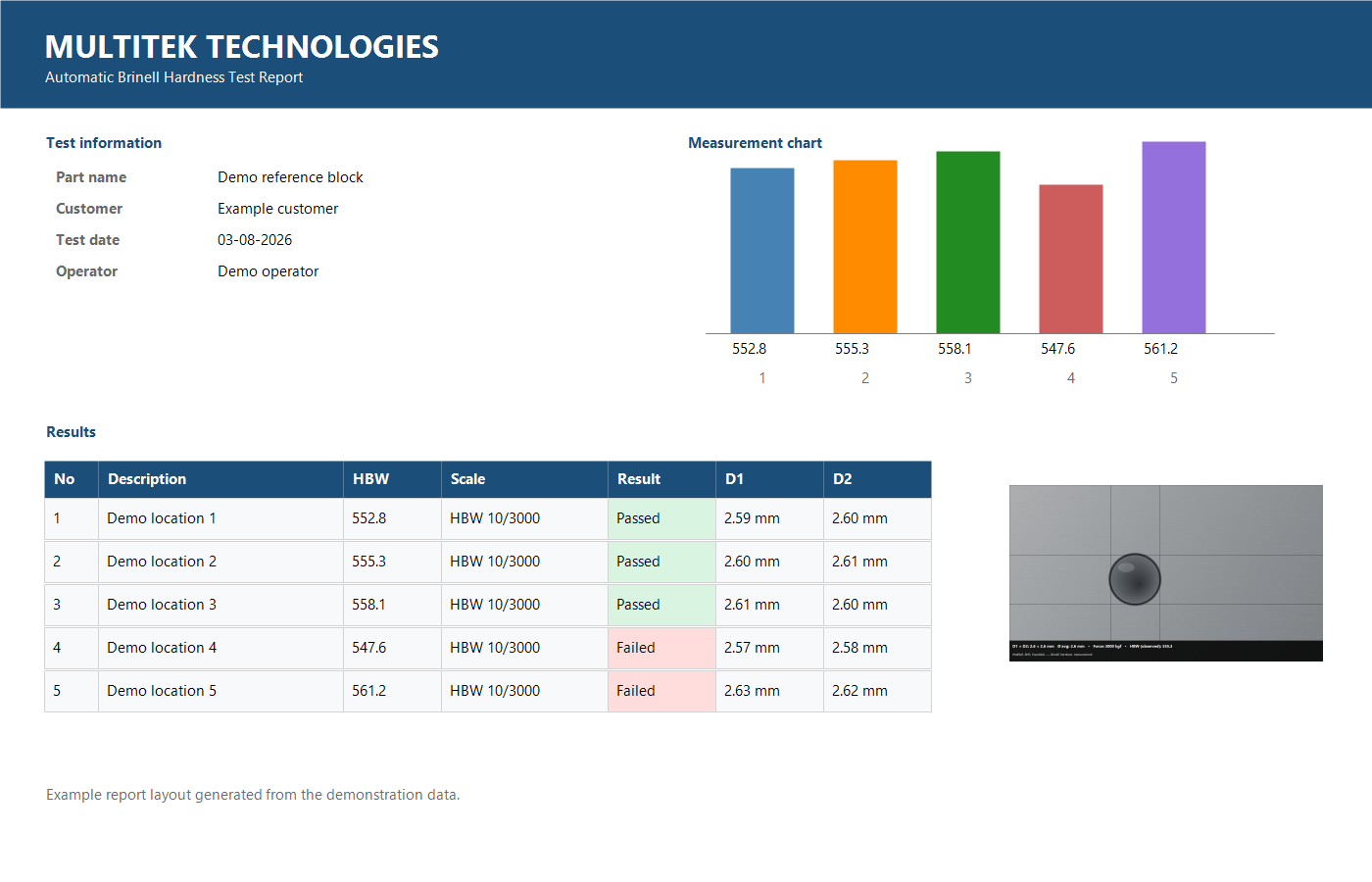
Example report layout with test information, trend, result table and indentation evidence.
User data that survives an upgrade
Licences, test patterns, records/database, restore points and report stationery live under a single folder beside the application. That makes backup and controlled software replacement clearer than scattering user data across the executable directory.
Deployment options
Coordinate machine state, force selection, turret/lens position, focus, camera, measurement and reporting in the commissioned configuration.
Explore machine approachesReview optical access, magnification, camera, resolution, calibration, test workflow and whether machine integration is practical or required.
Request upgrade assessmentOperator documentation
The 69-page manual covers safety, licensing, camera setup, calibration, autofocus, indentation detection, measurement, results, machine operation, reporting, backup and troubleshooting.
Download PDF manualFAQ
It measures the Brinell indentation diameter from a calibrated camera image, calculates HBW from the selected ball and force, records the result and can create reports with image evidence.
No. Measurement geometry is held in source-image coordinates and projected into the preview. Zooming or resizing changes the view, not the stored source-pixel positions.
Yes. BMS Essentials can stop the live camera and open a supported image file for measurement, review or demonstration.
It supports ROI-based automatic detection as well as manual markers, three-point circle and best-fit circle tools. The operator should review the proposed boundary.
A retrofit is possible only after reviewing the optics, camera, resolution, mechanical access, calibration and any machine/PLC interface. Contact Multitek for a compatibility assessment.
A complete Brinell system
Tell us the material, test scale, specimen size and required level of automation. Multitek will recommend a configuration rather than a generic catalogue answer.